
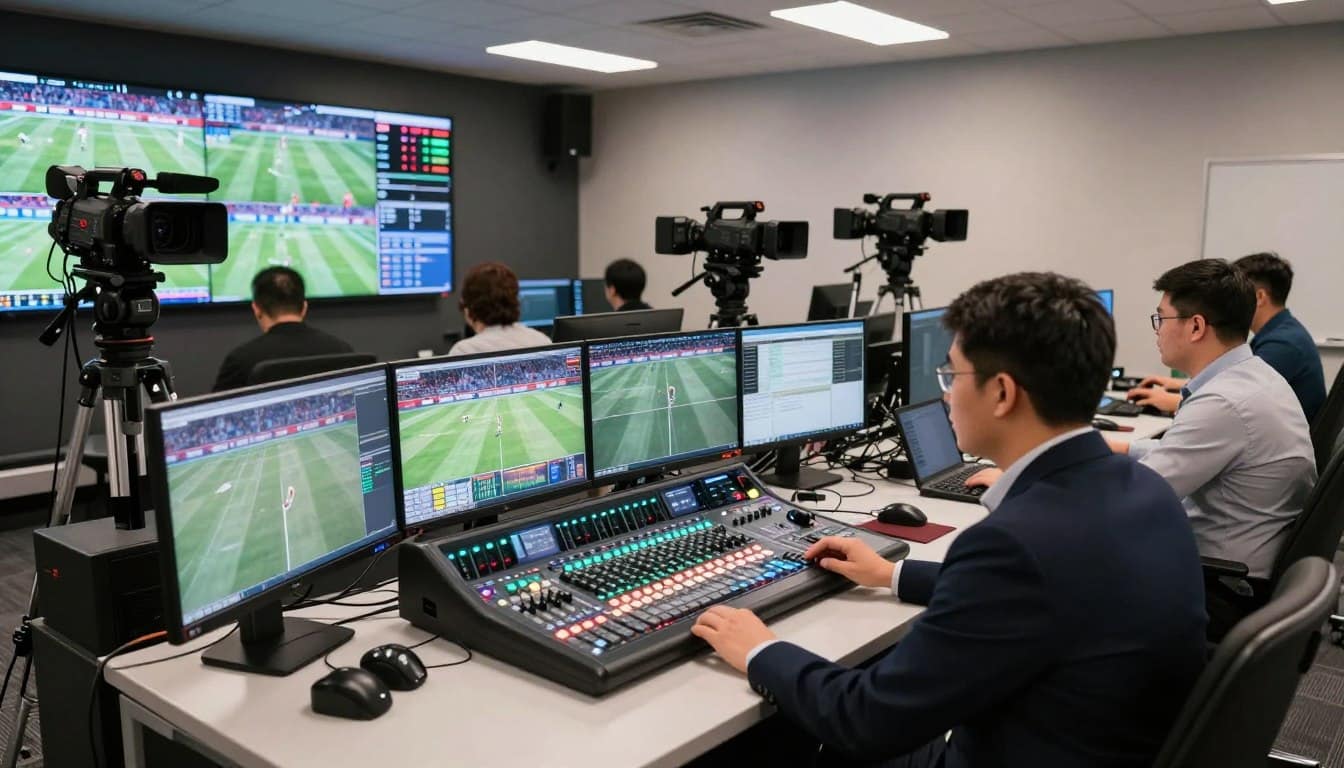
Live sports broadcasting is tough. It needs solid reliability, cool graphics, smooth camera switching, and remote commentator integration. The wrong software can ruin your stream and miss the mark with your audience.
Today, we have two main options: cloud-based streaming studios and professional desktop production software. Each has its own strengths for sports’ fast pace.
This guide helps you see clearly. We compare the top platforms. You’ll find the best multistreaming stack for your needs, skills, and budget.
Feature-by-feature: multi-destination, guest slots, lower-thirds/scorebugs, replays, NDI/SRT, ISO recording, audio
Looking at each feature shows what each streaming service can do well. They offer tools for sending out live video, working together, and making the video better.
Multi-destination
True multistreaming means sending live video to many places at once. This is key for reaching people on YouTube, Facebook, Twitch, and more.
Services like Restream and StreamYard make it easy to stream to many places. But, they might not offer as much control. Tools like Wirecast Pro and vMix let you control each stream better.
It’s important to know if a service can send to many places without limits. This is very useful for big events.
Guest slots
Adding remote guests is common. Cloud studios are great for this. Tools like StreamYard and Ecamm Live make it easy for guests to join with just a link.
Software like OBS or vMix can also bring in guests. But, it needs more setup and control from everyone involved.
Choose based on what’s more important: making it easy for guests or having more control over the stream.
Lower-thirds/scorebugs
Graphics are key for sports broadcasts. They show who’s speaking and game stats. Knowing which software can handle these graphics well is important.
Most professional tools can add graphics from other sources. This lets you use third-party services or your own graphics. The software must handle these graphics smoothly, even during fast-paced moments.
Replays
Instant replay is a big deal in sports. It lets producers show key moments right away. This feature is usually found in advanced software like vMix Pro or mimoLive.
Replay systems record a buffer of the live feed. With a hotkey, you can play back the last few seconds. For serious sports coverage, this feature is worth the extra cost.
NDI/SRT
Network protocols like NDI and SRT replace old cable setups. NDI sends video over a network as a high-quality stream. SRT is for stable video over the internet.
Support for these protocols varies. vMix and OBS work well with NDI. Wirecast and others are adding SRT support.
ISO recording
ISO record means recording each camera and audio separately. This is great for editing later. It lets you make highlight reels, fix mistakes, or isolate audio.
Software like Wirecast Pro and vMix can record each source separately. This needs a lot of storage and power but gives you a lot of editing options.
Audio
Good audio is just as important as video. Key features include mixing audio, removing echoes, and routing audio. Cloud tools often have echo cancellation built-in, like StreamYard.
Desktop software gives you more control over audio. You can mix different mics and apply filters. Good audio makes the stream better, just like using good hashtags can help your event be seen more.
Always check your audio during tech rehearsals. Bad echoes or low volume can ruin a great stream.
Hardware Needs and Reliability Planning
When it comes to sports streaming, the right hardware is key. It’s not about spending a lot. It’s about finding the perfect match for your production size and ensuring reliability during live games.
A simple computer might work for a basic stream. But sports production often needs more. You’ll need a powerful machine to handle 10-15 camera and graphic inputs. Software like OBS, vMix, and Wirecast can push your CPU hard. You need to plan your hardware to avoid lag and crashes.
Encoding: The Heart of Your Stream
Encoding turns your video into a streamable format. You have three main choices, each with its pros and cons. Your choice depends on cost, quality, and how much your system can handle.
| Encoding Method | Performance & Quality | Relative Cost | Best For |
|---|---|---|---|
| Software (CPU) | High CPU usage. Can struggle with multiple HD sources or ISO recording. | Low (Uses existing CPU) | Basic streams with few sources on a powerful processor. |
| Software (GPU) | Offloads work from CPU. Excellent for high frame rates and 4K. | Medium (Requires a good graphics card) | Streams heavy on graphics, overlays, and high-resolution outputs. |
| Dedicated Hardware Encoder | Superior efficiency and stability. Minimal impact on main computer. | High (Additional hardware purchase) | Professional, multi-destination sports events where reliability is critical. |
For high-resolution streams with ISO recording, a dedicated hardware encoder or a strong GPU is key. It lets your main computer handle the production software smoothly.
GPU Power for Graphics and Overlays
Your GPU does more than just encode. It handles all your on-screen elements. This includes lower-thirds, live scorebugs, and animated transitions.
A weak GPU can cause stuttering with layered graphics. For 4K productions or complex scenes, get a dedicated gaming or workstation-grade card. This makes your broadcast look polished and professional.
Bandwidth: Your Connection to the World
Bandwidth is a two-part challenge: upload speed for the internet and local network speed for your gear.
Upload Speed: Calculate your total needed bandwidth by adding the bitrates of all your output streams. For example, streaming to three platforms at 6 Mbps each requires a stable 18 Mbps upload minimum. Always have a 25-50% overhead to prevent congestion.
Local Network: If you use NDI or SRT to connect cameras and computers, you need a robust local network. A wired Gigabit Ethernet switch is non-negotiable for professional setups. It prevents audio/video sync issues and packet loss between devices.
For a live sports event, technical failure is not an option. Your hardware plan must include failsafes.
Uninterruptible Power Supply (UPS): This is your first line of defense. A quality UPS protects your encoder, computer, and network gear from power surges. More importantly, it provides battery backup to keep you on air during a brief outage. This gives you time to gracefully end the stream or switch to a backup system.
Backup Internet: A wired primary connection is best. Always have a secondary internet source ready. This can be a cellular hotspot or a separate ISP line. Use a dual-WAN router to auto-switch if the main line fails. This ensures your multistream never goes dark.
Building a reliable hardware foundation requires upfront planning. Assess your inputs, outputs, and must-have reliability features. Then, select components that not only meet but exceed your current needs. This forward-thinking approach is what separates amateur attempts from professional sports broadcasts.
Graphics and Score Integration Options
The look of your sports broadcast is key. It makes your stream look pro or amateur. Your graphics overlays show important info and keep viewers hooked.
You can choose from simple methods to advanced systems. Your choice depends on your budget, skills, and how polished you want it.
Manual Overlays: The Simple Starting Point
Many start with manual graphics. You create static images or clips for logos and scoreboards. Then, you add them in software like OBS Studio or StreamYard.
This method is easy and cheap. It’s great for basic branding. But, it’s static. Changing scores or stats means editing and reloading, which can be slow and error-prone.
Dynamic Graphics Solutions: Professional Automation
For a pro broadcast, you need graphics that update live. Dynamic solutions use APIs to update graphics in real-time. This is key for live scorebugs, player stats, and countdowns.
Platforms like Singular.live are great for this. You design templates in a browser and connect them to live data. When the score changes, the graphic updates instantly.
Other tools like SPX and Ligr also offer sports-specific templates. They save a lot of time.
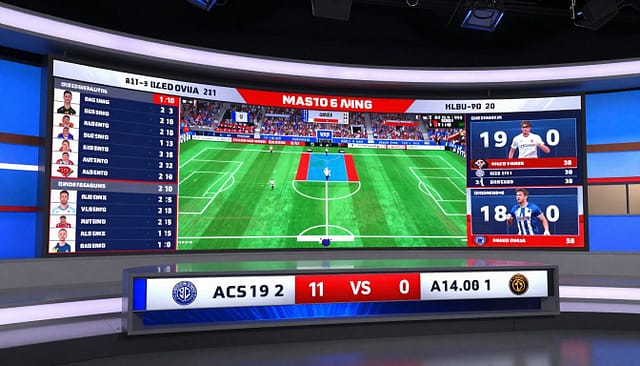
- Cloud-based Graphic Services (e.g., Singular.live): These are easy to use and reliable. You don’t need strong local hardware. Your graphics are managed online and can be updated remotely.
- Manual & Local API Methods: Tools like vMix have scoreboard tools and support data-driven graphics. This gives more control but needs a dedicated machine and technical setup.
For most, cloud dynamic graphics services are best. They remove the need for manual updates and boost production value. They work well with multistreaming setups, like StreamYard. Learn more in comparisons like Restream vs. StreamYard.
Your graphics should match the event’s importance. A club stream might use manual overlays. But a pro league broadcast needs a dynamic system. The right graphics tool improves your audience’s experience.
Price vs Value for Event Promoters (Per-Event Budgets)
When planning budgets for events, smart promoters look at the total cost, not just subscription fees. This section focuses on the financial side. We look at it from a consultant’s point of view to find real value.
Many promoters only see the monthly fee. But for one-off or seasonal events, there’s more to consider. Your costs include software, hardware, labor, and risk.
The idea of a per-event budget changes how you think about costs. It asks: “What does it cost to stream this single game or tournament?” This way, you see hidden savings and necessary investments.
Let’s break down the total cost of ownership for common streaming models.
Each model fits different production scales. A free tool like OBS might seem cheap but requires a lot of time and expertise. A monthly SaaS plan spreads out the cost but might include features you don’t need.
Perpetual licenses require a big upfront payment but can be cheaper over time. Turnkey hardware systems are expensive but great for dedicated studios.
Your choice should match your event’s frequency and your crew’s skills. A single annual championship has different needs than a weekly league.
| Pricing Model | Example Platforms | Typical Upfront Cost | Ongoing / Per-Event Cost | Key Value Consideration |
|---|---|---|---|---|
| Free / Open Source | OBS Studio | $0 | High crew training time. Possible reliability costs. | Maximum flexibility with zero software fee. Demands technical expertise. |
| Monthly SaaS | Restream, StreamYard, Uscreen | $0 – $50 setup | $20 – $250 per month. Often per host or output. | Low commitment. Easy updates. Costs scale with usage and features. |
| Perpetual License | vMix, Wirecast, Ecamm Live (one-time purchase) | $50 – $1200+ | Minor upgrade fees. No monthly streaming fee. | High upfront cost pays off over multiple events. You own the software. |
| Turnkey Hardware | TriCaster, Pearl-2 | $5,000 – $20,000+ | Maintenance. Possible service contracts. | All-in-one reliability for high-stakes, frequent productions. Dedicated hardware. |
Value isn’t just about the lowest price. It’s about the right features for your event. A per-event budget helps you see this clearly.
Consider crew training time as a cost. A free, complex system might need 40 hours of practice. A paid, easy-to-use tool might need only 4 hours. That time savings has real value.
Reliability costs money to ensure. A platform with built-in redundancy and support prevents stream failures. Avoiding a single major outage can justify a year of subscription fees.
Event promoters must weigh these factors. Ask: “What features are essential for this event?” “How much is my crew’s time worth?” “What is the financial impact of a stream going down?”
Financially savvy decisions align spending with production goals. A local youth league might thrive on OBS and volunteer labor. A professional esports qualifier needs the reliability of a paid service like vMix or a TriCaster.
Your total cost of ownership includes purchase price, labor, and risk mitigation. Calculate it per event to find the best value. This approach turns budget planning from a guessing game into a strategic advantage.
Example stacks: budget, pro, remote-crew
Let’s make three real-world multistreaming setups for sports. Each stack uses software, hardware, and strategy for different levels and budgets. These examples are a great starting point for your next event.
The Budget Stack is for local leagues or clubs with little money. It focuses on free software and cheap hardware.
Use OBS Studio as your switcher. It’s free and powerful. For graphics, use free plugins or simple browser sources. Stream to one platform, like YouTube or Facebook.
For hardware, you need a good gaming PC or laptop. Add one or two USB webcams for camera angles. A basic USB audio interface handles commentary microphones.
The total cost is under $1,000. This stack is great for intramural sports, youth league highlights, or community club streams. It’s reliable but budget-friendly.
The Pro Stack is for regional broadcasts or serious event promoters. It offers high production value and reliability.
vMix is the robust switching and replay hub. Connect cameras over NDI from a local network. Use Singular.live or SPX for dynamic, data-driven graphics like scorebugs.
Hardware includes a dedicated streaming PC with a strong GPU. A hardware encoder like the Blackmagic Web Presenter provides a failsafe backup stream. Professional XLR microphones and a mixer ensure crisp audio.
Investment ranges from $5,000 to $15,000. This setup is perfect for collegiate sports, semi-professional leagues, or high-stakes tournament coverage. Quality is key here.
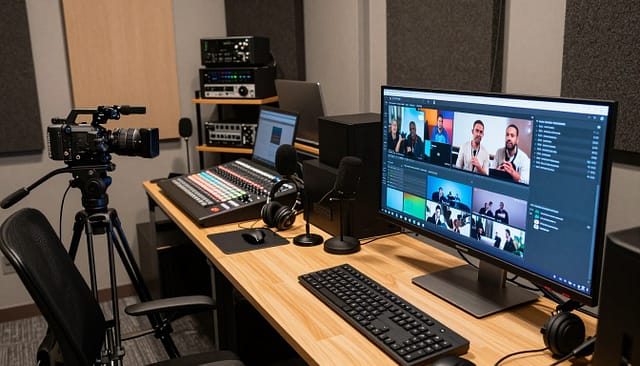
The Remote-Crew Stack is for distributed teams. Hosts, commentators, and producers can be in different cities. It heavily relies on a cloud studio platform.
Platforms like Restream Studio or StreamYard act as your virtual production truck. Guests join via browser links. The director switches scenes and layouts in the cloud.
Local hardware needs are minimal. Each participant needs a good webcam, microphone, and stable internet. A laptop often suffices. There’s no need for a local encoder or powerful PC.
Cost is mainly the monthly subscription for the cloud studio service, typically $50-$200. This stack excels for podcast-style sports shows, analyst panels, or broadcasts with talent spread across the country.
| Stack | Core Software | Key Hardware | Approx. Cost | Ideal Use Case |
|---|---|---|---|---|
| Budget | OBS Studio, free graphics | Gaming PC, USB webcams | Under $1,000 | Local league streams |
| Pro | vMix, Singular.live, NDI | Dedicated PC, hardware encoder, pro audio | $5k – $15k | Regional broadcast |
| Remote-Crew | Cloud studio (e.g., Restream) | Laptops, webcams, good internet | $50-$200/month | Distributed talent show |
Choosing your stack depends on your team’s location, budget, and quality goals. A local crew with some capital might choose the Pro stack. A geographically scattered team will find the cloud studio approach transformative. Start with the Budget stack to learn the basics without a large investment.
These examples blend tools into cohesive systems. Your perfect setup likely mixes elements from more than one column.
Onboarding plan: tech rehearsal, contingency ladder
Getting your team and tech ready for a big event is key. You need a detailed tech rehearsal and a clear plan for when things go wrong. This makes your tech stack reliable and ready for action.
It’s not about avoiding every problem. It’s about being ready for anything. A solid plan helps everyone, from the director to the graphics team, stay calm and professional.
The Mandatory Tech Rehearsal
Have a full tech rehearsal 48 hours before the event. This is your chance to find and fix issues before anyone sees them. Treat it as seriously as the live event itself.
Go through the whole broadcast sequence. Test everything under real conditions. Your checklist should include:
- All Camera Angles and Switches: Make sure each feed is clean and switches smoothly.
- Graphics Triggers and Scorebugs: Test every graphic. Check they appear correctly and are easy to read.
- Audio Levels and Mix: Check all audio levels. Make sure there’s no feedback or hum.
- Guest Connections: Test remote guests’ video and audio quality. Ensure they’re stable.
- Stream Destinations: Send your stream to all platforms at once. Check each gets a good quality feed.
Keep a record of what works. This will be your show’s “master configuration.”
Building Your Contingency Ladder
A contingency ladder is a step-by-step plan for when things go wrong. Each step is a specific action to fix a problem. The team only goes as far as needed to get the broadcast back on track.
The first step is the simplest fix. The last step is a graceful failure, like a holding slate. This keeps things calm and avoids random fixes.
To make your ladder, find your single points of failure. For each one, define the symptom, the immediate action, and the next step. Here’s a basic template for your contingency ladder:
| Failure Point | Symptom on Stream | Immediate Action (First Rung) | Backup Rung (Next Step) |
|---|---|---|---|
| Graphics Overlay | Scorebug or lower-third disappears or glitches. | Director cues switch to a pre-loaded backup graphic layer. | Cut to a clean wide shot; operator manually updates a simple text overlay. |
| Primary Audio Feed | Main commentator audio cuts out. | Audio engineer fades to a backup commentator microphone. | Switch to ambient crowd audio while issue is diagnosed. |
| Encoder/Software | Stream freezes or software crashes. | Technical director triggers failover to a redundant hardware encoder. | Cut to a pre-recorded “Please Stand By” slate with music. |
| Internet Connection | Bitrate drops, stream buffers for viewers. | Switch primary output to a bonded cellular backup connection. | Drop stream to a lower, stable resolution and stream to one primary destination only. |
Practice these steps during your tech rehearsal. Use clear commands for each action. For example, “Ladder One—switch to backup graphics” should be clear.
This plan turns theory into action. Your team won’t just know the equipment. They’ll know how to save the show when it’s needed. That confidence makes your broadcast professional.
Evaluation worksheet and RFP questions
Your search for the perfect multistream stack culminates here. This section provides the practical tools to translate your research into a definitive choice.
Start with a simple evaluation worksheet. Compare your shortlisted software—Restream, StreamYard, OBS, vMix, or Wirecast—across three core areas. Look at essential features, your budget, and your team’s skills. Assign weighted scores to see which platform truly aligns with your sports production goals.
Next, draft a list of sharp RFP questions for vendors. Demand specifics on uptime guarantees and redundancy plans. Pin down their promised support response times for critical live events. Ask about included training resources or onboarding sessions. Read the fine print on data limits and any hidden overage fees.
This disciplined approach to software selection removes guesswork. It empowers you to procure a solution that delivers professional results reliably, show after show.


